How to Use the Start and Devices Charms in Windows 8 — Video Guide (Historical)
Historical Windows 8 video guide to the Start and Devices charms and what each one did.
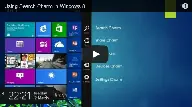
Historical support note: The Charms bar was a Windows 8-era interface and is not present in current Windows releases.
This video tip covers two of the five Windows 8 charms: Start and Devices.
Start charm
The Start charm takes you to the Windows 8 Start screen. If you are already on Start, using it returns you to the app or desktop you were previously using.
The Windows key provides the same quick switching behavior.
Devices charm
The Devices charm shows actions that the current app can perform with compatible devices. Depending on the app and hardware, this could include printing, playing media on another device, or projecting to a second screen.
Because the list is contextual, not every connected device appears for every app.
To open the Charms bar with a keyboard or mouse, use Windows key + C, then choose Devices. On touch hardware, swipe in from the right edge.
Historical context
Windows 8 introduced Charms as a common interface for search, sharing, Start, devices, and settings. Later Windows versions moved those functions into other parts of the shell.
Official reference
- Microsoft Windows lifecycle status: https://support.microsoft.com/en-us/windows/deployment/updates-lifecycle/what-does-it-mean-if-windows-isn-t-supported
Related posts
Browse all articles →
Set Up and Sync a Microsoft Account in Windows 8 (Historical)
Historical Windows 8 guide to adding a Microsoft account and enabling the operating system's original settings-sync experience across Windows 8 devices.
How to Use the Settings Charm in Windows 8 — Video Guide (Historical)
Historical Windows 8 video guide to the Settings charm, including app-specific settings and common system controls.
Using the Share Charm in Windows 8 — Video Guide (Historical)
Historical Windows 8 guide to sharing content from compatible apps through the Share charm.