Fix Alt+Tab Not Working Correctly in Windows 7 — Historical Guide
Historical Windows 7 troubleshooting for Alt+Tab switcher problems, including keyboard checks, Explorer restart, visual settings, clean boot, and system-file repair.
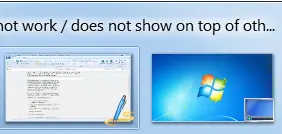
Historical support note: This article targets Windows 7, which is unsupported.
If Alt+Tab does not switch windows or the switcher appears behind other applications, start with the least invasive checks.
1. Test the keyboard
Try both Alt keys and confirm Tab works independently. If possible, test another keyboard. Accessibility or keyboard-remapping software can also intercept shortcuts.
2. Restart Windows Explorer
Save your work, log off and back on, or restart the PC. This resets the shell and is safer than immediately editing the registry.
3. Check visual-effects settings
Windows 7’s desktop composition and visual effects influence the Alt+Tab UI. If you recently disabled Aero/Desktop Window Manager effects, restore the normal theme and test again.
4. Check for software conflicts
Screen recorders, remote-control tools, keyboard utilities, shell replacements, and hotkey managers can intercept Alt+Tab. Use a clean boot to test whether third-party software is responsible.
5. Repair system files
Run an elevated Command Prompt:
sfc /scannowRestart after completion.
The original registry-based Alt+Tab tweaks are not retained as a first-line fix because they can alter the switcher behavior without addressing the actual cause.
Official references
- Microsoft: System File Checker: https://support.microsoft.com/en-us/windows/experience/backup-recovery/use-the-system-file-checker-tool-to-repair-missing-or-corrupted-system-files
- Microsoft Windows lifecycle status: https://support.microsoft.com/en-us/windows/deployment/updates-lifecycle/what-does-it-mean-if-windows-isn-t-supported
Related posts
Browse all articles →
Fix Picture Thumbnails Not Showing in Windows 7 — Historical Guide
Historical Windows 7 guide to restoring image thumbnails in File Explorer by checking folder settings, view mode, cache, and file associations.
Fix Windows Setup Error 0x80FE0000 or 0x80FF0000 in Windows 7/Vista (Historical)
Historical troubleshooting for Windows Setup errors 0x80FE0000/0x80FF0000 and 'could not set the offline locale information,' with destructive disk steps removed from the default workflow.
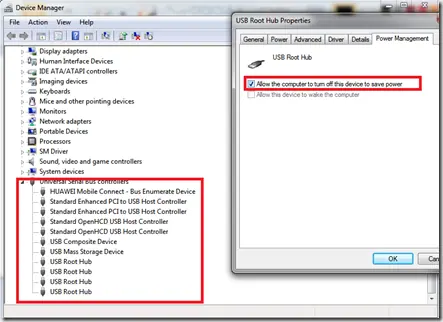
Troubleshoot Stop 0x9F or 0xFE on AMD-Based Windows 7/Vista PCs (Historical)
Historical troubleshooting for Windows 7/Vista systems that crash with 0x9F or 0xFE around sleep or USB activity, with the two bug checks correctly separated.