Keyboard and Mouse Stop Working After Windows Sign-In (XP–8, Historical)
Safer legacy troubleshooting for a keyboard or mouse that works before Windows loads but stops responding at or after sign-in.
Historical support note: This guide covers Windows XP through Windows 8. The exact recovery menus differ by version, but the diagnostic approach is still useful for legacy systems.
If the keyboard works in firmware/BIOS or the Windows recovery environment but stops responding after Windows loads, the problem is more likely to involve Windows drivers, software, or power management than the physical keyboard itself.
1. Simplify the hardware
Shut the PC down and disconnect nonessential USB devices, hubs, docking stations, game controllers, and other peripherals. Connect a basic keyboard and mouse directly to motherboard USB ports where possible.
Try a different USB port. On older desktops, a rear USB 2.0 port can be useful for testing because it may use a simpler controller path than an add-in or front-panel port.
2. Test Safe Mode
If the keyboard and mouse work in Safe Mode, uninstall or roll back a recently added input, chipset, USB, security, or filter driver. Then install the correct chipset/USB/input drivers from the PC or motherboard manufacturer.
Do not use generic driver-download websites.
3. Use System Restore when the failure began suddenly
From Windows Recovery, restore the system to a point before the input devices stopped working.
4. Check firmware settings only when appropriate
Some old systems include Legacy USB support options. Do not change unrelated USB speed, emulation, or simulation settings without checking the PC/motherboard documentation first.
What was removed from the original article
The earlier version suggested disconnecting the LAN cable, flushing DNS, switching to High Performance power mode, and disabling power saving on every USB root hub. Those steps do not directly diagnose a keyboard/mouse failure and can create new power or networking problems, so they are no longer recommended as defaults.
Official reference
- Microsoft Windows lifecycle status: https://support.microsoft.com/en-us/windows/deployment/updates-lifecycle/what-does-it-mean-if-windows-isn-t-supported
Related posts
Browse all articles →
Fix an External USB Hard Drive Not Detected in Windows 8, 7, Vista, or XP — Historical Guide
Historical external-drive troubleshooting for older Windows versions, emphasizing safe cable, power, Device Manager, and Disk Management checks without risking existing data.
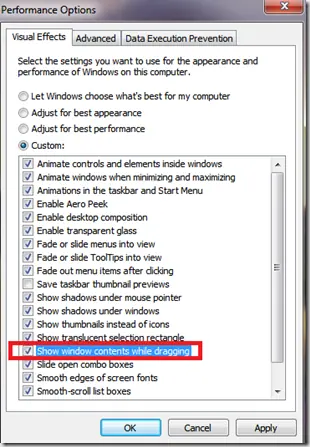
Fix Windows Turning Transparent While Dragging or Resizing (Windows XP–8, Historical)
Historical troubleshooting for Windows XP through Windows 8 when window contents disappear or appear transparent while dragging or resizing.
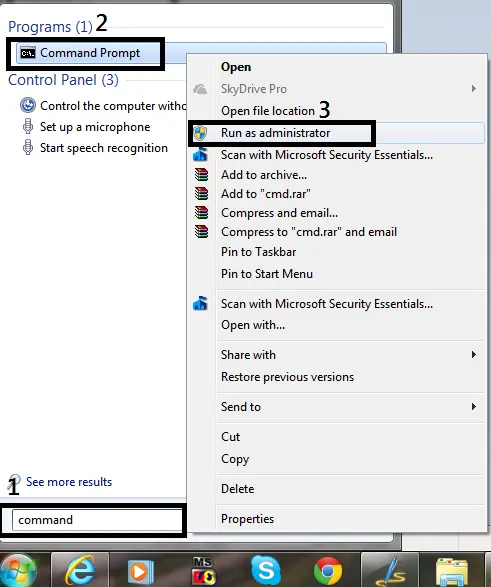
How to Open Command Prompt as Administrator in Windows 8, 7, and Vista (Historical)
Historical guide to opening an elevated Command Prompt in Windows 8, Windows 7, and Windows Vista.