Fix an External USB Hard Drive Not Detected in Windows 8, 7, Vista, or XP — Historical Guide
Historical external-drive troubleshooting for older Windows versions, emphasizing safe cable, power, Device Manager, and Disk Management checks without risking existing data.
Historical support note: This guide covers unsupported Windows versions. The safety principle remains important: do not initialize, repartition, or format a drive that may contain data you need.
1. Check power, cable, and USB port
- Use the drive’s original power adapter if it has one.
- Try a different known-good USB cable.
- Connect directly to the PC instead of through an unpowered hub.
- Try another USB port and, if possible, another computer.
If the drive clicks, repeatedly spins up/down, or disconnects, stop repeated tests and consider professional data recovery.
2. Check Device Manager
Open Device Manager and inspect Disk drives and Universal Serial Bus controllers. If the drive appears with an error, record the device status/code before uninstalling anything.
3. Check Disk Management
Open Disk Management and locate the external disk by capacity.
- If the partition is healthy but has no drive letter, assign an unused letter.
- If the disk appears Offline, investigate why before bringing it online, especially on systems using disk cloning or multiple copies.
- If Windows calls the disk Unknown, Not Initialized, Unallocated, or RAW and the disk previously contained files, do not initialize or format it merely to make it appear in Explorer.
4. Use the manufacturer’s diagnostics
If the drive is detected intermittently or reports SMART/diagnostic failures, back up recoverable data and replace the drive.
5. Reinstall drivers only when evidence points there
USB mass-storage drivers are built into Windows, while enclosure/bridge firmware can be vendor-specific. Do not delete all USB controllers as a routine first step.
Official references
- Microsoft: CHKDSK behavior and repair switches: https://learn.microsoft.com/en-us/windows-server/administration/windows-commands/chkdsk
- Microsoft Windows lifecycle status: https://support.microsoft.com/en-us/windows/deployment/updates-lifecycle/what-does-it-mean-if-windows-isn-t-supported
Related posts
Browse all articles →
Keyboard and Mouse Stop Working After Windows Sign-In (XP–8, Historical)
Safer legacy troubleshooting for a keyboard or mouse that works before Windows loads but stops responding at or after sign-in.
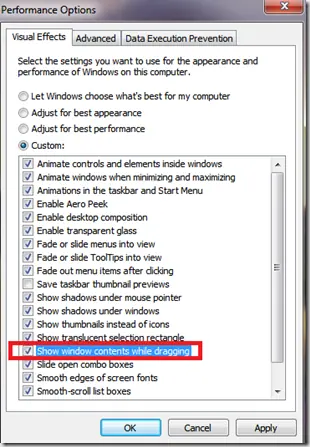
Fix Windows Turning Transparent While Dragging or Resizing (Windows XP–8, Historical)
Historical troubleshooting for Windows XP through Windows 8 when window contents disappear or appear transparent while dragging or resizing.
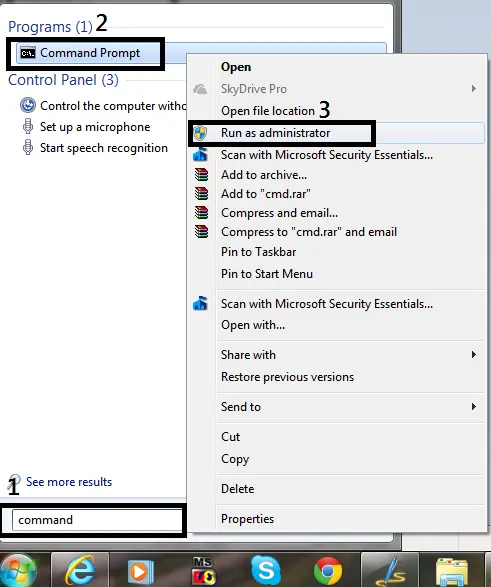
How to Open Command Prompt as Administrator in Windows 8, 7, and Vista (Historical)
Historical guide to opening an elevated Command Prompt in Windows 8, Windows 7, and Windows Vista.