Recover Data from a Drive That Suddenly Shows as RAW in Windows (Historical)
Safer data-first troubleshooting for a Windows drive or partition that suddenly appears as RAW and cannot be opened.

Important: If a drive suddenly appears as RAW and the data matters, prioritize recovery before repair. Do not format the volume just because Windows offers to format it.
The original version of this article used TestDisk to write partition and boot-sector changes, followed by chkdsk. That can be appropriate in expert hands, but it is too aggressive as a first-line recovery workflow.
1. Stop writing to the drive
Do not copy new files to it, initialize it, repartition it, or format it. If it is an external drive, avoid repeated disconnect/reconnect cycles when the drive appears unstable.
2. Check whether the hardware itself is failing
Open Disk Management only to inspect how Windows sees the disk. If the drive repeatedly disconnects, reports I/O errors, makes unusual mechanical noises, or disappears from firmware/BIOS detection, software repair may make the situation worse. Consider professional recovery for valuable data.
3. Recover or image the data first
If the hardware is stable, use a reputable recovery tool in read-only/search mode first. Recover files to a different physical drive.
TestDisk can list/copy files from some damaged partition structures, but do not choose options such as Write, Rebuild BS, or other structure-changing operations until the important data is safely copied or the source has been imaged.
4. Be cautious with CHKDSK
Microsoft documents that chkdsk /f fixes file-system errors—it is not a read-only diagnostic. That means it can modify file-system metadata.
If the filesystem is damaged and your priority is data recovery, do not make chkdsk /f your first step. Recover the data first, then repair or recreate the filesystem once you have a backup.
5. Recreate the filesystem only after recovery
After the data is secure, you can delete/recreate the damaged volume or reformat the drive as appropriate. If the RAW state returns, replace the drive rather than trusting it with important data.
Official references
- Microsoft
chkdskcommand documentation: https://learn.microsoft.com/en-us/windows-server/administration/windows-commands/chkdsk - Microsoft Windows lifecycle status: https://support.microsoft.com/en-us/windows/deployment/updates-lifecycle/what-does-it-mean-if-windows-isn-t-supported
Related posts
Browse all articles →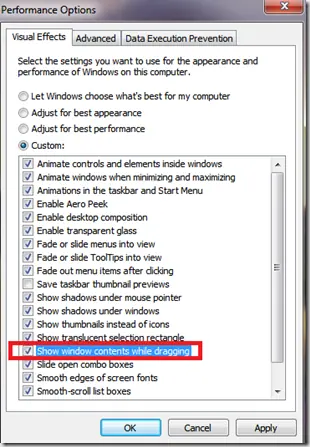
Fix Windows Turning Transparent While Dragging or Resizing (Windows XP–8, Historical)
Historical troubleshooting for Windows XP through Windows 8 when window contents disappear or appear transparent while dragging or resizing.

Keyboard and Mouse Stop Working After Windows Sign-In (XP–8, Historical)
Safer legacy troubleshooting for a keyboard or mouse that works before Windows loads but stops responding at or after sign-in.
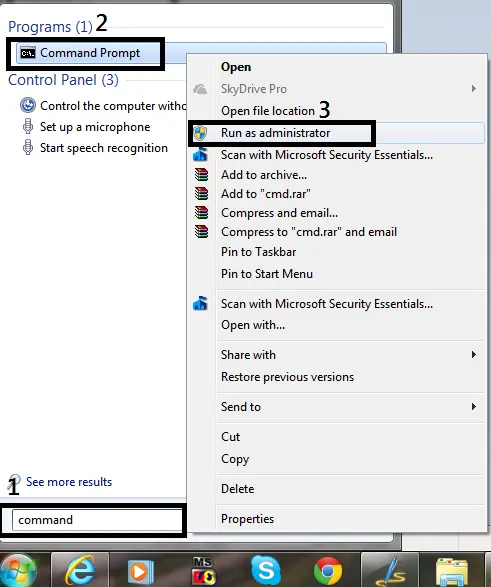
How to Open Command Prompt as Administrator in Windows 8, 7, and Vista (Historical)
Historical guide to opening an elevated Command Prompt in Windows 8, Windows 7, and Windows Vista.