Fix Picture Thumbnails Not Showing in Windows 7 — Historical Guide
Historical Windows 7 guide to restoring image thumbnails in File Explorer by checking folder settings, view mode, cache, and file associations.
Historical support note: This guide applies to Windows 7, which is unsupported.
If image files show generic icons instead of previews, first check Explorer settings before editing the registry or installing codec packs.
1. Enable thumbnails in Folder Options
- Open Computer or Windows Explorer.
- Choose Organize > Folder and search options.
- Open the View tab.
- Clear Always show icons, never thumbnails.
- Select Apply and OK.
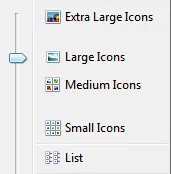
Use a folder view such as Medium, Large, or Extra Large Icons so thumbnails have room to display.
2. Rebuild the thumbnail cache
Use Disk Cleanup and select Thumbnails. Windows will recreate the cache as folders are opened again.
3. Check whether the problem affects only one file type
If JPEG thumbnails work but another image format does not, the format may require a compatible handler/codec. Install software only from the application or codec vendor you trust.
4. Repair system files if Explorer itself is damaged
From an elevated Command Prompt:
sfc /scannowRestart and test again.
Avoid registry “thumbnail fixes” unless you have identified a specific damaged value; the normal Folder Options and cache-rebuild steps are safer.
Official references
- Microsoft: System File Checker: https://support.microsoft.com/en-us/windows/experience/backup-recovery/use-the-system-file-checker-tool-to-repair-missing-or-corrupted-system-files
- Microsoft Windows lifecycle status: https://support.microsoft.com/en-us/windows/deployment/updates-lifecycle/what-does-it-mean-if-windows-isn-t-supported
Related posts
Browse all articles →
Fix Alt+Tab Not Working Correctly in Windows 7 — Historical Guide
Historical Windows 7 troubleshooting for Alt+Tab switcher problems, including keyboard checks, Explorer restart, visual settings, clean boot, and system-file repair.
Fix Windows Setup Error 0x80FE0000 or 0x80FF0000 in Windows 7/Vista (Historical)
Historical troubleshooting for Windows Setup errors 0x80FE0000/0x80FF0000 and 'could not set the offline locale information,' with destructive disk steps removed from the default workflow.
Troubleshoot Stop 0x9F or 0xFE on AMD-Based Windows 7/Vista PCs (Historical)
Historical troubleshooting for Windows 7/Vista systems that crash with 0x9F or 0xFE around sleep or USB activity, with the two bug checks correctly separated.