Fix Broken Libraries in Windows 8.1 and Restore Default Libraries (Historical)
Show Libraries in Windows 8.1 File Explorer and restore the default library definitions when Documents, Pictures, Music, or Videos libraries are broken.
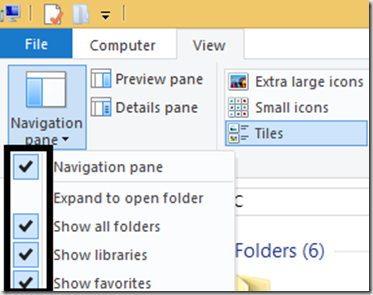
Historical support note: Windows 8.1 reached end of support on January 10, 2023.
Windows Libraries are virtual containers that can combine content from more than one folder. If the Libraries section disappeared or one of the default libraries stopped opening correctly, Windows 8.1 included controls to show Libraries and restore the default library definitions.
1. Show Libraries in File Explorer
On Windows 8.1:
- Open File Explorer.
- Open the View tab.
- Select Navigation pane.
- Enable Show libraries.
If Libraries were only hidden, they should now reappear in the navigation pane.
2. Restore the default libraries
If a default library is missing or its definition is damaged:
- In File Explorer, locate Libraries in the navigation pane.
- Right-click Libraries.
- Select Restore default libraries.
Windows recreates its default library definitions, such as Documents, Music, Pictures, and Videos.
Restoring default libraries does not normally delete the files stored in the folders referenced by those libraries. A library is a view that points to locations; it is not itself the storage location for all of the files it displays.
If a library still fails
Check whether the folders included in the library still exist and whether the signed-in account has access to them. If a folder was moved to an unavailable external or network location, the library can appear broken even when its definition is valid.
Current context
Libraries still exist in newer Windows releases, although they are less prominent in File Explorer. Microsoft’s current Windows Libraries documentation explains how to show them in modern File Explorer.
Official references
- Microsoft Windows Libraries: https://learn.microsoft.com/en-us/windows/client-management/client-tools/windows-libraries
- Windows 8.1 end of support: https://support.microsoft.com/en-us/windows/windows-8-1-support-ended-on-january-10-2023-3cfd4cde-f611-496a-8057-923fba401e93
Related posts
Browse all articles →
Fix Windows Boot Error 0xc0000225 in Windows 10 or 8.1
Troubleshoot boot error 0xc0000225 with Startup Repair first, then repair Boot Configuration Data only when needed.
Fix Windows Update Error 0x80080008 in Windows 8 or 8.1 (Historical)
Historical Windows 8/8.1 troubleshooting for update error 0x80080008, with unsupported-OS context and safer repair steps.
Fix Error 0x800F0906 in Windows 8 or 8.1 (Historical)
Troubleshoot Windows 8/8.1 error 0x800F0906 when Windows cannot download files needed for a feature or component repair.