Fix Drag and Drop Not Working in Windows 7, Vista, or XP — Historical Guide
Historical troubleshooting for drag-and-drop failures in Windows Explorer and applications on Windows 7, Vista, and XP.

Historical support note: This article covers unsupported Windows releases.
If drag and drop stops working, first determine whether the problem is limited to one application or affects Windows Explorer and several applications.
1. Restart the affected application or Explorer
Save your work and restart the program. If Explorer itself is affected, log off and back on or restart Windows.
2. Check for an elevation mismatch
Windows Vista and Windows 7 can block drag and drop between processes running at different integrity levels. For example, dragging from a normal Explorer window into an application launched as administrator may not work by design.
Run both applications normally where possible instead of elevating programs unnecessarily.
3. Test the mouse and keyboard
Confirm the primary mouse button works reliably and that no key such as Esc, Ctrl, or Shift is physically stuck. Test another mouse if the behavior is erratic.
4. Use a clean boot or new user profile
If the problem occurs across applications, a shell extension or background utility may be interfering. Test in a clean-boot environment or another user account before making registry changes.
5. Repair Windows files
On Windows Vista/7, run:
sfc /scannowThe original article’s broad registry repairs are not retained as a default because drag-and-drop failures have multiple causes and indiscriminate shell/registry changes can create additional problems.
Official references
- Microsoft: System File Checker: https://support.microsoft.com/en-us/windows/experience/backup-recovery/use-the-system-file-checker-tool-to-repair-missing-or-corrupted-system-files
- Microsoft Windows lifecycle status: https://support.microsoft.com/en-us/windows/deployment/updates-lifecycle/what-does-it-mean-if-windows-isn-t-supported
Related posts
Browse all articles →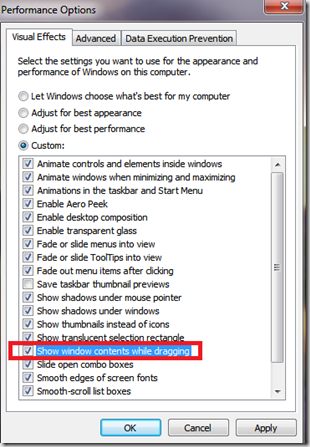
Fix Windows Turning Transparent While Dragging or Resizing (Windows XP–8, Historical)
Historical troubleshooting for Windows XP through Windows 8 when window contents disappear or appear transparent while dragging or resizing.
Fix PAGE_FAULT_IN_NONPAGED_AREA (0x50) in Windows 7/Vista/XP (Historical)
Historical troubleshooting for PAGE_FAULT_IN_NONPAGED_AREA (0x50), focusing on faulty drivers/services, antivirus software, NTFS corruption, and failing memory or hardware.
Fix Folder View Settings That Keep Resetting in Windows 7/Vista (Historical)
Historical troubleshooting for Windows 7/Vista when Explorer repeatedly forgets saved folder-view settings.