Fix an Empty Device Manager in Windows 7, Vista, or XP — Historical Guide
Historical troubleshooting for Device Manager opening with no devices listed, using service checks, system-file repair, System Restore, and profile testing without broad registry ACL changes.
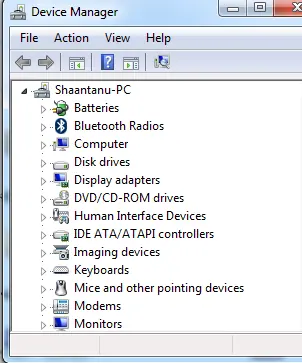
Historical support note: This article covers Windows 7, Windows Vista, and Windows XP, all of which are unsupported.
An entirely empty Device Manager is different from one or two missing devices. It can indicate a damaged management component, service problem, corrupted system files, profile issue, or permissions damage.
1. Restart and verify the behavior
Restart Windows and reopen devmgmt.msc. If Device Manager works in another administrator account, the original profile may be damaged.
2. Check Plug and Play
Open services.msc and locate Plug and Play. On these Windows versions it should not be disabled. Do not change unrelated hardware services in bulk.
3. Run System File Checker
On Windows Vista/7, open an elevated Command Prompt and run:
sfc /scannowWindows XP may request installation media while SFC repairs protected files.
4. Use System Restore if the problem began recently
If Device Manager became empty after a software, driver, or registry change, restore to a point from before the change where practical.
5. Test another administrator account
Create or use another administrator profile and open Device Manager there. This helps separate per-user shell/profile corruption from a machine-wide problem.
Avoid broad registry-permission resets
The original guide changed permissions on the entire HKLM\SYSTEM\CurrentControlSet\Enum tree and granted broad access. That can weaken device/security permissions and is removed from this revision. If registry ACLs are genuinely damaged, restore from backup/System Restore or repair the installation rather than applying blanket permissions.
Official references
- Microsoft: System File Checker: https://support.microsoft.com/en-us/windows/experience/backup-recovery/use-the-system-file-checker-tool-to-repair-missing-or-corrupted-system-files
- Microsoft Windows lifecycle status: https://support.microsoft.com/en-us/windows/deployment/updates-lifecycle/what-does-it-mean-if-windows-isn-t-supported
Related posts
Browse all articles →
Fix Hardware Devices Not Detected in Windows 8, 7, Vista, or XP — Historical Guide
Historical device-detection troubleshooting for older Windows versions using connection checks, Device Manager, OEM drivers, and hardware diagnostics.

Fix File and Folder Problems in Windows 7, Vista, and XP — Historical Guide
Historical Windows 7, Vista, and XP guide to diagnosing file and folder copy, move, rename, delete, permission, and Explorer problems.
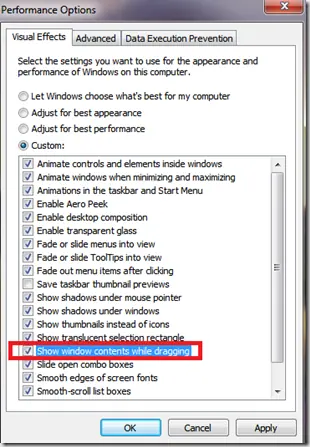
Fix Windows Turning Transparent While Dragging or Resizing (Windows XP–8, Historical)
Historical troubleshooting for Windows XP through Windows 8 when window contents disappear or appear transparent while dragging or resizing.