Fix Windows Update Error 0x80080008 in Windows 8 or 8.1 (Historical)
Historical Windows 8/8.1 troubleshooting for update error 0x80080008, with unsupported-OS context and safer repair steps.
Historical Windows 8/8.1 article: Windows 8 support ended in 2016 and Windows 8.1 support ended on January 10, 2023. Microsoft no longer provides normal security updates or technical support for these releases.
Error 0x80080008 could appear when the Windows Update components or servicing image were damaged. The original article used DLL re-registration as a routine fix; that is no longer a good first-line recommendation.
For an old Windows 8.1 installation that you must recover, use the least invasive checks first.
1. Restart and verify the basics
Restart the PC, confirm the date/time are correct, and make sure the machine has a stable network connection.
2. Repair the Windows component store and system files
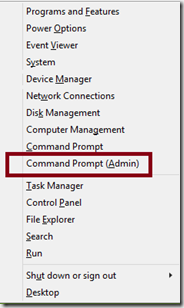
Open Command Prompt as administrator and run:
DISM.exe /Online /Cleanup-Image /RestoreHealthAfter DISM completes, run:
sfc /scannowRestart the PC when both commands have completed.
3. Retry Windows Update only for maintenance of an existing system
Because Windows 8.1 is out of support, Windows Update is no longer a path to a currently supported and secure operating system. If the device can run a supported Windows release, migration is preferable to investing heavily in repair of the old update stack.
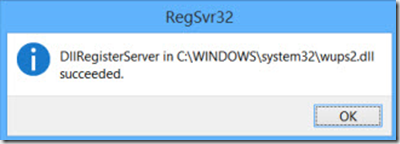
The older regsvr32 wups2.dll technique has been removed from this revised article because it addresses only a narrow component-registration scenario and should not be presented as a general cure for 0x80080008.
Official support context
Related posts
Browse all articles →
Fix Windows Boot Error 0xc0000225 in Windows 10 or 8.1
Troubleshoot boot error 0xc0000225 with Startup Repair first, then repair Boot Configuration Data only when needed.
Fix Error 0x800F0906 in Windows 8 or 8.1 (Historical)
Troubleshoot Windows 8/8.1 error 0x800F0906 when Windows cannot download files needed for a feature or component repair.
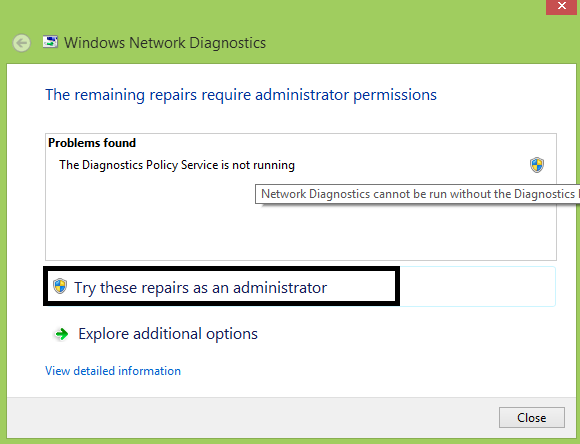
Fix 'Diagnostics Policy Service Is Not Running' in Windows 8 or 8.1 (Historical)
Troubleshoot the Diagnostics Policy Service on Windows 8/8.1 without granting service accounts unnecessary administrator privileges.