Fix: Windows Recovery Environment (WinRE) Won't Open in Windows 10
Troubleshoot Windows 10 when Advanced startup or Windows Recovery Environment will not open, using supported WinRE checks and recovery media.
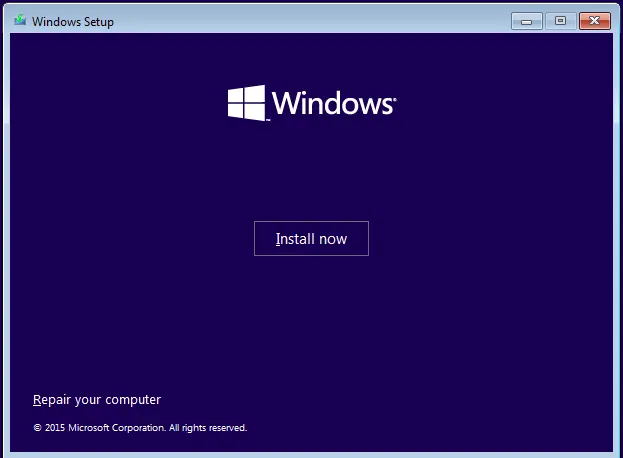
Windows Recovery Environment (WinRE) contains Startup Repair, System Restore, Command Prompt, and other recovery tools. If Advanced startup does not open or WinRE fails to load, work from the least disruptive checks first.
Windows 10 support note: Windows 10 reached end of normal support on October 14, 2025. This article is retained for existing Windows 10 systems.
1. Try another supported way to enter WinRE
If Windows still starts, try either of these:
- Hold Shift while selecting Power > Restart.
- Open Settings > Update & Security > Recovery, then select Restart now under Advanced startup.
If Windows repeatedly fails to start, WinRE may open automatically.
2. Check whether WinRE is enabled
If Windows still boots, open Command Prompt as administrator and run:
reagentc /infoLook for Windows RE status.
If the status is Disabled, try:
reagentc /enableThen run reagentc /info again.
If Windows reports that the recovery image cannot be found, do not guess at recovery-partition paths. Use Windows installation or recovery media to access the repair tools, or repair the WinRE configuration only after confirming where winre.wim is stored.
3. Use installation or recovery media
- Start the PC from a Windows installation USB or recovery drive.
- On Windows Setup, choose the language and keyboard layout.
- Select Repair your computer rather than Install now.
- Open Troubleshoot > Advanced options.
- Try Startup Repair if Windows is failing to boot.
If BitLocker is enabled, you may need the recovery key before Windows can access encrypted system files.
4. Repair Windows system files if Windows still starts
If the problem appears to be damaged Windows files, open an elevated Command Prompt and run:
sfc /scannowRestart after the scan finishes and try Advanced startup again.
Official references
- Windows Recovery Environment: https://learn.microsoft.com/en-us/windows-hardware/manufacture/desktop/windows-recovery-environment--windows-re--technical-reference
- REAgentC command-line options: https://learn.microsoft.com/en-us/windows-hardware/manufacture/desktop/reagentc-command-line-options
- Startup Repair: https://support.microsoft.com/en-us/windows/experience/startup-boot/startup-repair
Related posts
Browse all articles →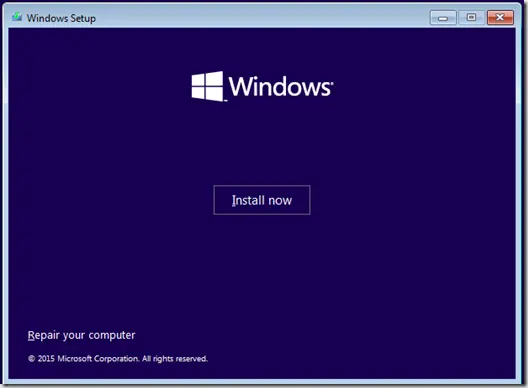
Fix Windows Boot Error 0xc0000225 in Windows 10 or 8.1
Troubleshoot boot error 0xc0000225 with Startup Repair first, then repair Boot Configuration Data only when needed.
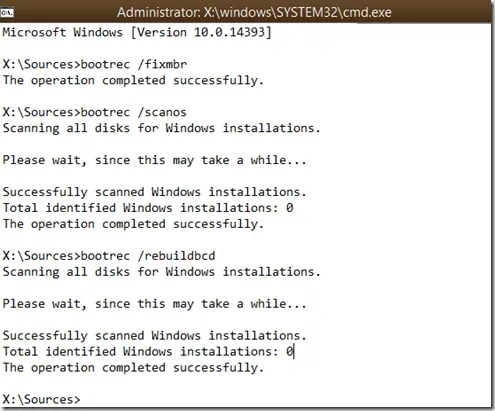
How to Rebuild the BCD in Windows 10 or Windows 8.1
Repair Boot Configuration Data from Windows Recovery Environment, using Startup Repair first and Bootrec or BCDBoot only when needed.

Fix a Blank Screen or Startup Failure in Windows 8 After an Improper Shutdown (Historical)
Historical Windows 8 startup-recovery guidance for a blank screen or failure to boot after a crash, power loss, shutdown, or hibernation problem.