Fix 'Windows Explorer Has Stopped Working' in Windows 7, Vista, and XP — Historical Guide
Historical troubleshooting for repeated Windows Explorer crashes in Windows 7, Vista, and XP, using system-file checks, clean boot, restore, and driver/app isolation.

Historical support note: Windows 7, Vista, and XP are out of support.
Repeated Windows Explorer has stopped working messages can be caused by damaged system files, incompatible shell extensions or programs, display/thumbnail components, malware, or user-profile corruption.
1. Check protected system files
Open an elevated Command Prompt and run:
sfc /scannowOn these legacy versions, System File Checker can replace damaged protected Windows files.
2. Test with a clean boot
If Explorer becomes stable during a clean boot, re-enable non-Microsoft services and startup items in groups until the conflict returns.
3. Look for a recent trigger
If the crashes began after installing a program, shell extension, codec pack, or driver, update, disable, or uninstall that specific component. Use System Restore if the problem began after a recent system change and a suitable restore point exists.
4. Check the display driver only when symptoms point to it
If Explorer crashes while generating thumbnails, changing display modes, or after a graphics-driver update, install the PC or graphics manufacturer’s appropriate driver or roll back the recent driver change.
5. Test another user profile
If Explorer fails only in one account, a damaged user profile or per-user shell setting may be involved.
Official references
- Microsoft: System File Checker: https://support.microsoft.com/en-us/windows/experience/backup-recovery/use-the-system-file-checker-tool-to-repair-missing-or-corrupted-system-files
- Microsoft: Clean boot: https://support.microsoft.com/en-us/windows/experience/startup-boot/how-to-perform-a-clean-boot-in-windows
- Microsoft: Windows support lifecycle: https://support.microsoft.com/en-us/windows/deployment/updates-lifecycle/what-does-it-mean-if-windows-isn-t-supported
Related posts
Browse all articles →
Fix Hardware Devices Not Detected in Windows 8, 7, Vista, or XP — Historical Guide
Historical device-detection troubleshooting for older Windows versions using connection checks, Device Manager, OEM drivers, and hardware diagnostics.
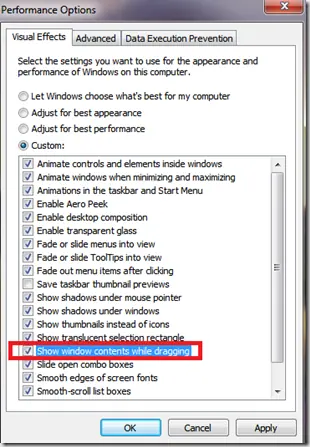
Fix Windows Turning Transparent While Dragging or Resizing (Windows XP–8, Historical)
Historical troubleshooting for Windows XP through Windows 8 when window contents disappear or appear transparent while dragging or resizing.
Fix PAGE_FAULT_IN_NONPAGED_AREA (0x50) in Windows 7/Vista/XP (Historical)
Historical troubleshooting for PAGE_FAULT_IN_NONPAGED_AREA (0x50), focusing on faulty drivers/services, antivirus software, NTFS corruption, and failing memory or hardware.