Troubleshoot a Slow Windows 7, Vista, or XP PC — Historical Guide
Historical performance troubleshooting for Windows 7, Vista, and XP PCs, focusing on startup load, storage, RAM, malware, thermals, and power settings.

Historical support note: Windows 7, Vista, and XP are out of support.
A slow PC can come from many different bottlenecks. Before changing drivers, services, or registry settings, identify whether the machine is constrained by CPU, memory, disk, startup software, heat, or malware.
1. Check startup load
Use Task Manager and, on these legacy versions, msconfig to identify unnecessary third-party startup programs. Disable only software you recognize; do not randomly disable hardware, security, or Windows components.
2. Check free disk space and disk health
A nearly full or failing disk can make Windows extremely slow. Free space first, then investigate repeated disk errors, SMART warnings from the manufacturer, or unusual mechanical noises.
For mechanical hard disks, legacy Windows defragmentation can help fragmented files. Do not apply old HDD defragmentation advice blindly to SSDs.
3. Check memory pressure
If available memory remains near zero during normal use, close unnecessary software or consider a RAM upgrade supported by the PC. If crashes accompany the slowdown, use Windows Memory Diagnostic or the manufacturer’s memory test.
4. Scan for malware with software appropriate to the legacy environment
Do not install multiple real-time antivirus products at once. Unsupported Windows versions cannot be made fully secure simply by installing an antivirus package.
5. Check power and temperature
On laptops, a power-saving plan can deliberately reduce performance. Thermal throttling from blocked vents, failed fans, or dust can also make a system slow.
Official references
- Microsoft: Windows support lifecycle: https://support.microsoft.com/en-us/windows/deployment/updates-lifecycle/what-does-it-mean-if-windows-isn-t-supported
- Microsoft: Windows Memory Diagnostic is documented in current Windows troubleshooting: https://support.microsoft.com/en-us/windows/experience/performance-optimization/how-to-fix-error-0xa-irql-not-less-or-equal
Related posts
Browse all articles →
Fix Antivirus Still Showing Out of Date After Updating — Windows 8/7/Vista/XP (Historical)
Historical troubleshooting for antivirus products that downloaded definitions but still reported an outdated status on older Windows releases.
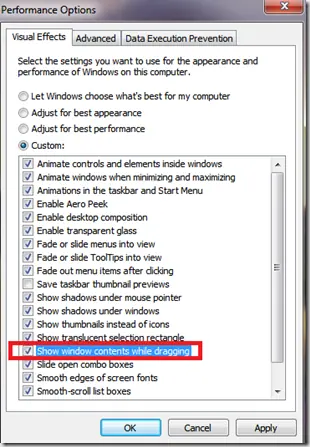
Fix Windows Turning Transparent While Dragging or Resizing (Windows XP–8, Historical)
Historical troubleshooting for Windows XP through Windows 8 when window contents disappear or appear transparent while dragging or resizing.
Fix PAGE_FAULT_IN_NONPAGED_AREA (0x50) in Windows 7/Vista/XP (Historical)
Historical troubleshooting for PAGE_FAULT_IN_NONPAGED_AREA (0x50), focusing on faulty drivers/services, antivirus software, NTFS corruption, and failing memory or hardware.