Fix Frequent 'Not Responding' Messages in Windows 7 and Vista — Historical Guide
Historical Windows 7/Vista troubleshooting for applications that frequently stop responding, with resource, disk, memory, driver, and system-file checks.
Historical support note: This guide applies to Windows 7 and Windows Vista, which are no longer supported by Microsoft.
An occasional Not Responding message does not necessarily mean Windows is damaged. Frequent hangs across several programs, however, can point to storage problems, memory pressure, faulty drivers, malware, or damaged system files.
1. Check whether the problem affects one app or the whole PC
If only one application hangs, update or reinstall that application first. If many unrelated apps hang, continue with system-level checks.
Open Task Manager and look for unusually high CPU, memory, or disk usage. Close only applications you recognize; do not end Windows processes at random.
2. Check free disk space and storage health
Keep reasonable free space on the Windows volume. If you suspect file-system problems, start with a read-only check where practical and back up important data before repair operations.
chkdsk /f and especially chkdsk /r are repair operations, not routine performance tune-ups. Microsoft documents that these switches modify the volume to fix errors.
3. Test memory if crashes or hangs are widespread
Use Windows Memory Diagnostic from the Start menu. Memory errors warrant hardware troubleshooting rather than software tweaks.
4. Install only relevant updates and drivers
For these legacy systems, use drivers supplied for the exact PC or hardware model. Avoid generic driver-updater utilities.
5. Repair Windows system files
Open an elevated Command Prompt and run:
sfc /scannowRestart when it completes and test again.
6. Use a clean boot to isolate background software
If the hangs disappear in a clean-boot environment, re-enable non-Microsoft services and startup items gradually to identify the conflict.
The original article recommended routine defragmentation and BIOS updates as general fixes. Those are not appropriate blanket responses to application hangs and have been removed from the primary workflow.
Official references
- Microsoft: System File Checker: https://support.microsoft.com/en-us/windows/experience/backup-recovery/use-the-system-file-checker-tool-to-repair-missing-or-corrupted-system-files
- Microsoft: CHKDSK: https://learn.microsoft.com/en-us/windows-server/administration/windows-commands/chkdsk
- Microsoft Windows lifecycle status: https://support.microsoft.com/en-us/windows/deployment/updates-lifecycle/what-does-it-mean-if-windows-isn-t-supported
Related posts
Browse all articles →
Fix Brightness Controls or Hotkeys Not Working in Windows 8, 7, Vista, or XP — Historical Guide
Historical troubleshooting for laptop brightness sliders and function keys that stop working on older Windows versions.
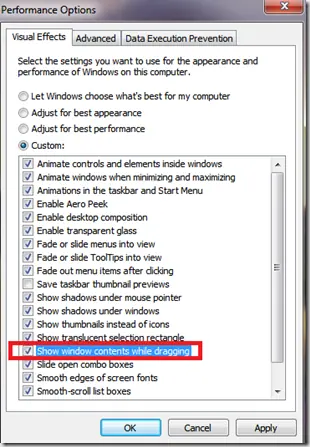
Fix Windows Turning Transparent While Dragging or Resizing (Windows XP–8, Historical)
Historical troubleshooting for Windows XP through Windows 8 when window contents disappear or appear transparent while dragging or resizing.

Keyboard and Mouse Stop Working After Windows Sign-In (XP–8, Historical)
Safer legacy troubleshooting for a keyboard or mouse that works before Windows loads but stops responding at or after sign-in.