Add Keyboard Input Languages in Windows 8, Including Hindi (Historical)
A historical Windows 8 guide to adding another input language and switching keyboard layouts from the taskbar.
- Applies to Windows 8
- 1 min read
View article illustration
Historical support note: Windows 8 is no longer supported by Microsoft. These steps document its original Control Panel interface.
Windows 8 can use more than one keyboard input language, allowing you to switch between layouts while typing. The original example used Hindi, but the same process applied to other languages available in the Windows 8 language list.
Add an input language
- Open the Start screen and search for Control Panel.
- Open Control Panel.
- Change View by to Small icons if necessary.
- Open Language.
- Select Add a language.
- Choose the language you want to add.
- Add the desired keyboard/input method if Windows offers more than one.
Switch between input languages
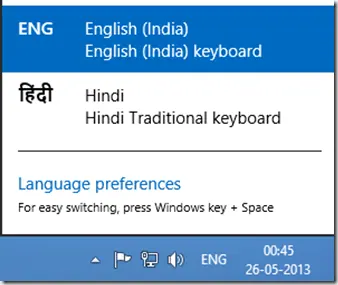
After adding another input method, Windows displays a language indicator near the notification area, such as ENG for English.
Select the indicator and choose the input language or keyboard layout you want to use.
Adding an input language changes how the keyboard produces characters; it does not automatically translate existing text.
About language packs
A keyboard/input method and a full Windows display-language pack are different things. You can add an input method without necessarily changing the Windows interface language.
Official reference
- Microsoft Windows lifecycle status: https://support.microsoft.com/en-us/windows/deployment/updates-lifecycle/what-does-it-mean-if-windows-isn-t-supported
Related posts
Browse all articles →
Fix Broken Libraries in Windows 8.1 and Restore Default Libraries (Historical)
Show Libraries in Windows 8.1 File Explorer and restore the default library definitions when Documents, Pictures, Music, or Videos libraries are broken.

Set Up a Second Screen or Multiple Monitors in Windows 8 (Historical)
Connect and configure a second display in Windows 8 using the Project/Second Screen controls and the Windows+P shortcut.
Keyboard and Mouse Stop Working After Windows Sign-In (XP–8, Historical)
Safer legacy troubleshooting for a keyboard or mouse that works before Windows loads but stops responding at or after sign-in.