Set Up a Second Screen or Multiple Monitors in Windows 8 (Historical)
Connect and configure a second display in Windows 8 using the Project/Second Screen controls and the Windows+P shortcut.

Historical support note: This guide documents Windows 8. The display modes described here—PC screen only, Duplicate, Extend, and Second screen only—remain familiar in newer Windows versions, but the surrounding UI has changed.
Windows 8 made it easy to switch between common multi-monitor modes.
Connect the second display
Connect the monitor or projector using the appropriate HDMI, DisplayPort, DVI, VGA, or supported adapter for your hardware. Turn the display on and select the correct input.
Choose a display mode
The quickest method is:
- Press Windows key + P.
- Choose one of the available modes:
- PC screen only — use only the primary display.
- Duplicate — show the same desktop on both displays.
- Extend — extend the desktop across both displays.
- Second screen only — use only the external display.
In the original Windows 8 UI, the same choices were also available through Charms > Devices > Second screen.
If the second display is not detected
- Reseat the display cable and confirm the monitor is using the correct input.
- Try another cable or output port when possible.
- Install the display driver supplied by the PC or graphics-adapter manufacturer for that hardware.
- Avoid installing unrelated optional driver packages simply because they appear in an old Windows Update list.
Official references
- Microsoft: Use multiple monitors in Windows: https://support.microsoft.com/en-us/windows/hardware/display-graphics/how-to-use-multiple-monitors-in-windows
- Microsoft Windows lifecycle status: https://support.microsoft.com/en-us/windows/deployment/updates-lifecycle/what-does-it-mean-if-windows-isn-t-supported
Related posts
Browse all articles →
Use DISM to Repair the Windows 8 or 8.1 Component Store (Historical)
Check and repair Windows 8/8.1 component-store corruption with DISM, then run System File Checker to repair protected system files.
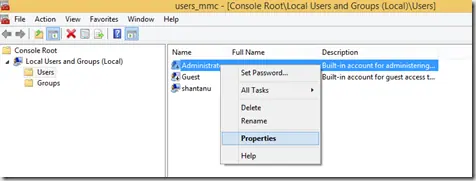
How to Enable the Built-in Administrator Account in Windows 8.1 (Historical)
Enable the built-in Windows 8.1 Administrator account only when necessary, set a strong password, and disable it again after troubleshooting.
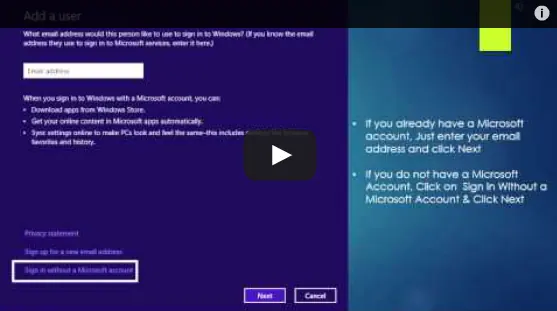
Set Up and Sync a Microsoft Account in Windows 8 (Historical)
Historical Windows 8 guide to adding a Microsoft account and enabling the operating system's original settings-sync experience across Windows 8 devices.