How to Disable AutoRun/AutoPlay in Windows 7, Vista, and XP (Historical)
Historical guide to reducing automatic media execution in Windows 7, Vista, and XP using AutoPlay policy rather than error-prone registry edits.

Historical support note: Windows 7, Vista, and XP are unsupported. This article is retained to document how AutoRun/AutoPlay controls worked on those systems.
AutoRun and AutoPlay are related but not identical. AutoRun lets media request automatic program execution, while AutoPlay is the user-facing action picker shown when media or devices are connected.
Because malicious removable media historically abused AutoRun behavior, administrators often disabled automatic actions.
Preferred method: Local Group Policy
Windows 7 and Windows Vista
- Press Windows key + R, type
gpedit.msc, and press Enter. - Go to Computer Configuration > Administrative Templates > Windows Components > AutoPlay Policies.
- Open Turn off AutoPlay.
- Set it to Enabled and choose the drive scope you want to disable.
Windows XP
The equivalent policy is under Computer Configuration > Administrative Templates > System > Turn off AutoPlay.
Home editions may not include Local Group Policy Editor.
About the old registry method
The original article treated this path as though NoDriveTypeAutoRun were a registry key:
HKEY_CURRENT_USER\Software\Microsoft\Windows\CurrentVersion\Policies\Explorer\NoDriveTypeAutoRunNoDriveTypeAutoRun is actually a value under the Explorer key. Microsoft also warns that changing these AutoRun values globally is an administrative action and can have side effects. For that reason, Group Policy is the clearer method where available.
Official references
- Microsoft: Enabling and disabling AutoRun: https://learn.microsoft.com/en-us/windows/win32/shell/autoplay-reg
- Microsoft: Turn off AutoPlay policy behavior: https://learn.microsoft.com/en-us/troubleshoot/windows-client/shell-experience/issues-autoplay-disabled-group-policy
- Microsoft Windows lifecycle status: https://support.microsoft.com/en-us/windows/deployment/updates-lifecycle/what-does-it-mean-if-windows-isn-t-supported
Related posts
Browse all articles →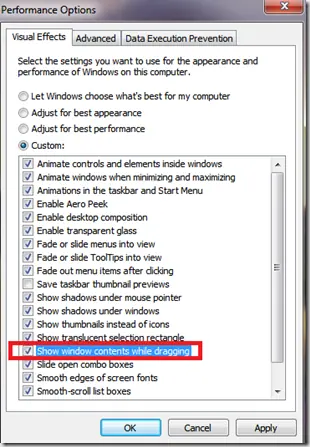
Fix Windows Turning Transparent While Dragging or Resizing (Windows XP–8, Historical)
Historical troubleshooting for Windows XP through Windows 8 when window contents disappear or appear transparent while dragging or resizing.
Fix PAGE_FAULT_IN_NONPAGED_AREA (0x50) in Windows 7/Vista/XP (Historical)
Historical troubleshooting for PAGE_FAULT_IN_NONPAGED_AREA (0x50), focusing on faulty drivers/services, antivirus software, NTFS corruption, and failing memory or hardware.
Fix Folder View Settings That Keep Resetting in Windows 7/Vista (Historical)
Historical troubleshooting for Windows 7/Vista when Explorer repeatedly forgets saved folder-view settings.