How to View Local Users and Groups in Windows 8 or 8.1 (Historical)
Open the Local Users and Groups MMC snap-in on supported Windows 8/8.1 editions and save a custom MMC console if needed.
Historical support note: Windows 8 and Windows 8.1 are out of support.
The Local Users and Groups Microsoft Management Console (MMC) snap-in lets an administrator view and manage local user and group accounts on supported Windows editions.
Fastest method
On an edition that includes the snap-in:
- Press Windows + R.
- Type:
lusrmgr.msc- Press Enter.
This opens Local Users and Groups directly.
Add the snap-in to a custom MMC console
If you want to create your own management console:
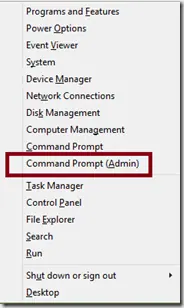
- Open an elevated Command Prompt or the Run dialog.
- Type
mmcand press Enter. - In MMC, select File > Add/Remove Snap-in.
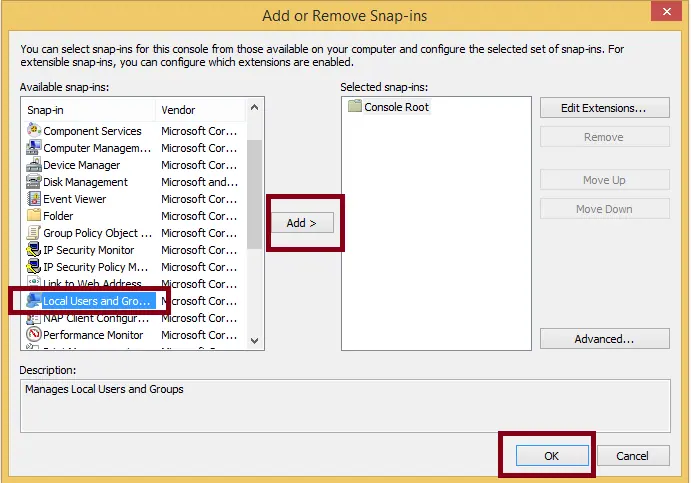
- Select Local Users and Groups and choose Add.
- Select Local computer.
- Choose Finish, then OK.
- Expand Local Users and Groups (Local) to view Users and Groups.
- If you want to reuse this console, select File > Save As and save the
.mscfile.
Edition limitation
The Local Users and Groups snap-in is not included in every Windows client edition. In particular, Home/Core editions do not normally provide this management interface. If the snap-in is absent, use the account-management options available to that edition rather than downloading an unofficial replacement.
Security note
Being able to see an account does not mean it should be enabled or added to Administrators. Use the least privilege needed for the task.
Reference
Microsoft local-account documentation: https://learn.microsoft.com/en-us/windows/security/identity-protection/access-control/local-accounts
Related posts
Browse all articles →
Fix Windows Boot Error 0xc0000225 in Windows 10 or 8.1
Troubleshoot boot error 0xc0000225 with Startup Repair first, then repair Boot Configuration Data only when needed.
Fix Windows Update Error 0x80080008 in Windows 8 or 8.1 (Historical)
Historical Windows 8/8.1 troubleshooting for update error 0x80080008, with unsupported-OS context and safer repair steps.
Fix Error 0x800F0906 in Windows 8 or 8.1 (Historical)
Troubleshoot Windows 8/8.1 error 0x800F0906 when Windows cannot download files needed for a feature or component repair.