How to Set Up Hyper-V in Windows 10 Insider Preview (Historical)
A historical Windows 10 Insider Preview guide to opening Hyper-V Manager, connecting to the local host, and configuring default virtual-machine storage paths.
- Applies to Windows 10
- 2 min read
View article illustration
This article is retained as a historical Windows 10 Insider Preview guide from May 2015. The Windows 10 Technical Preview no longer exists as a supported product, and Windows 10 itself reached end of normal support on October 14, 2025.
The basic Hyper-V Manager concepts described here still exist in modern Hyper-V, but current Windows 10 and Windows 11 systems should use Microsoft’s current Hyper-V documentation.
Before opening Hyper-V Manager
Hyper-V must already be enabled on the PC. Microsoft currently documents Hyper-V on Windows 10 Pro or Enterprise and Windows 11 Pro or Enterprise, with hardware requirements that include a 64-bit processor with Second Level Address Translation (SLAT), virtualization support enabled in firmware, and at least 4 GB of RAM.
If Hyper-V is not installed, enable it first before continuing.
Open Hyper-V Manager
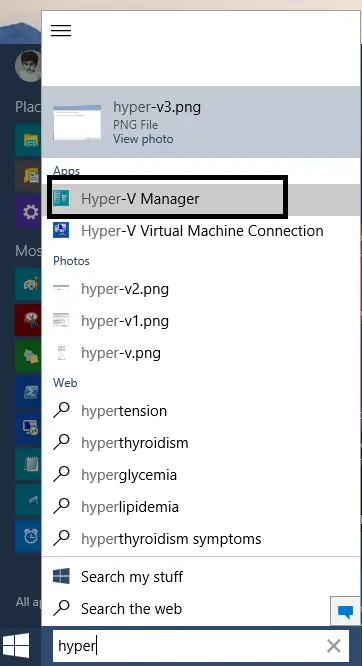
- Open Start.
- Search for Hyper-V Manager.
- Select Hyper-V Manager from the results.
In the left pane, Hyper-V Manager normally lists the local computer as a host.
If the local host is not listed:
- Select Connect to Server in the Actions pane.
- Choose Local computer.
- Select OK.
Configure Hyper-V storage locations
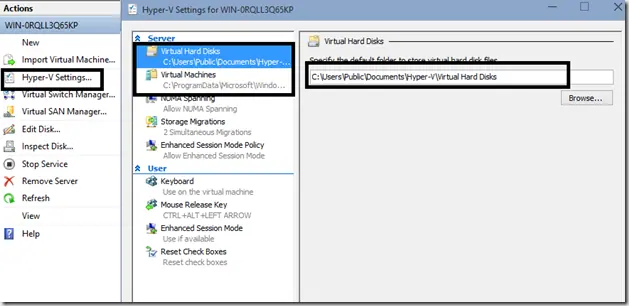
Select the local host in the left pane, then choose Hyper-V Settings.
Two useful host settings are:
- Virtual Hard Disks — the default location for newly created
.vhdor.vhdxfiles. - Virtual Machines — the default location for virtual-machine configuration files.
Change these locations only if you have a reason to store VMs on another drive, such as capacity or performance. Make sure the destination has enough free space for the virtual machines and their virtual disks.
Create or import a virtual machine
After the host is configured, use the Actions pane to create a new virtual machine or import an existing one. If the VM needs network access, configure or select an appropriate Hyper-V virtual switch.
The exact wizard screens have changed since the 2015 Insider Preview, so use current Microsoft documentation when working on a modern PC.
Official references
Related posts
Browse all articles →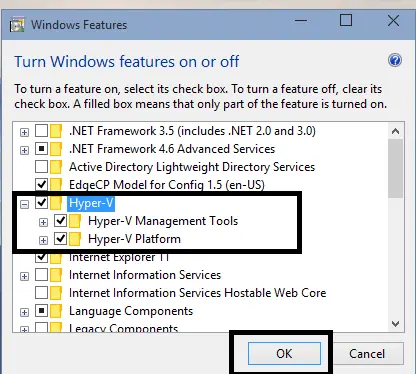
How to Enable Hyper-V in Windows 10 Technical Preview (Historical)
A historical guide to enabling Hyper-V in the Windows 10 Technical Preview, with current Hyper-V requirements included for context.
How to Create a Virtual Switch in Hyper-V on Windows 10
Create an external, internal, or private Hyper-V virtual switch in Windows 10 and attach virtual machines to the network you need.
How to Apply a Hyper-V Checkpoint in Windows 10
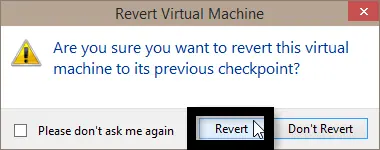
Restore a Hyper-V virtual machine to an existing checkpoint in Windows 10 and understand the difference between Apply and Create Checkpoint and Apply.