Using Recovery Options Quickly in Windows 8 (Historical)
Historical Windows 8 guide to opening Windows Recovery Environment and choosing repair, restore, refresh, or command-line tools.

Historical support note: This article documents the Windows 8 recovery interface. Windows 8 support ended in 2016, and Windows 8.1 support ended in 2023.
Windows 8 includes the Windows Recovery Environment (WinRE), which provides tools such as Startup Repair, System Restore, Command Prompt, Refresh your PC, and Reset your PC.
Back up important data before using recovery operations that can reinstall Windows or remove applications.
If Windows still starts
The quickest route is Shift + Restart:
- Open the power menu from Windows or the sign-in screen.
- Hold Shift while selecting Restart.
- On Choose an option, select Troubleshoot.
- Choose the recovery tool that matches the problem.
If Windows does not start
Use one of these routes instead:
- Let Windows enter Automatic Repair/WinRE after repeated failed starts.
- Boot from a Windows 8 recovery drive.
- Boot from compatible Windows 8 installation media and choose the repair option instead of installing.
The original article recommended pressing F8 during startup. That was not a reliable general method on Windows 8 systems, especially with fast startup and UEFI firmware, so it is no longer presented as the primary recovery route.
Official references
- Microsoft: Windows Recovery Environment: https://support.microsoft.com/en-au/windows/experience/backup-recovery/windows-recovery-environment
- Microsoft Windows lifecycle status: https://support.microsoft.com/en-us/windows/deployment/updates-lifecycle/what-does-it-mean-if-windows-isn-t-supported
Related posts
Browse all articles →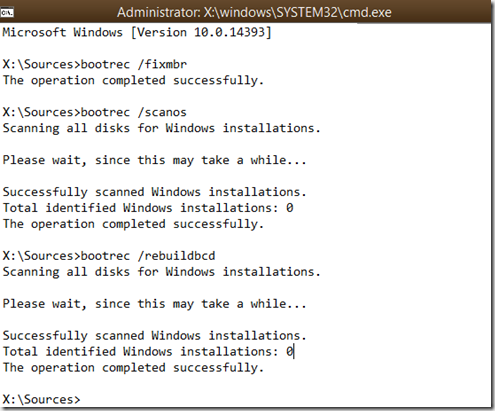
How to Rebuild the BCD in Windows 10 or Windows 8.1
Repair Boot Configuration Data from Windows Recovery Environment, using Startup Repair first and Bootrec or BCDBoot only when needed.

Use DISM to Repair the Windows 8 or 8.1 Component Store (Historical)
Check and repair Windows 8/8.1 component-store corruption with DISM, then run System File Checker to repair protected system files.
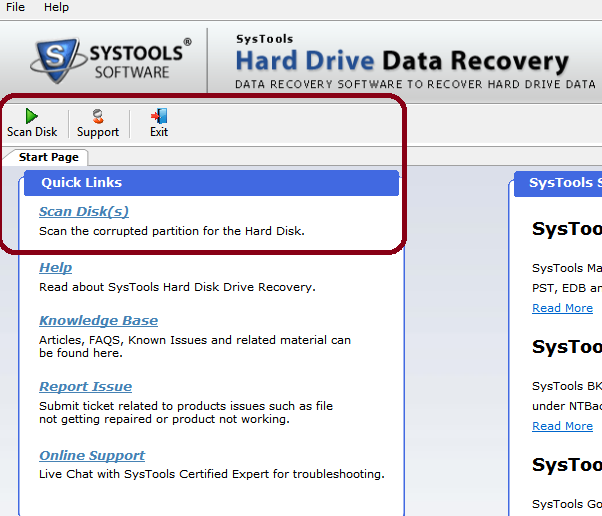
SysTools Hard Drive Data Recovery for Windows — 2014 Review (Historical)
An edited archive of a 2014 hands-on review of SysTools Hard Drive Data Recovery, with current product context separated from the original test results.