Fix: Cannot Turn Off Password-Protected Sharing in Windows 8, 7, or Vista (Historical)
Historical troubleshooting for password-protected file sharing settings that will not stay disabled in Windows 8, Windows 7, or Windows Vista.
Historical support note: This article covers unsupported Windows releases. Disabling password-protected sharing reduces access controls on local network shares, so use it only on a trusted network and understand who can reach the shared files.
First, change the setting in Advanced sharing settings
- Open Control Panel > Network and Sharing Center.
- Select Change advanced sharing settings.
- Expand the profile that applies to the current network, and in Windows 8 expand All Networks where applicable.
- Under Password protected sharing, select Turn off password protected sharing.
- Save the change with administrator approval if requested.
If the setting does not stay off
The original article treated the Guest account password as the primary cause and recommended resetting that password to blank. That is too narrow and can weaken access controls.
Instead, check these items:
- Make sure you are changing the setting from an administrator account.
- Confirm the PC is not domain-managed or controlled by a Group Policy that restores the setting.
- Verify the network profile and the specific folders you are sharing.
- Check the local accounts that have permission to the shared folder rather than relying on the built-in Guest account.
For a home network, the safer design is usually to keep password-protected sharing enabled and give each user an account/password with only the permissions they need.
Official references
- Microsoft: Windows 8-era small-business network and password-protected sharing guidance: https://learn.microsoft.com/en-us/troubleshoot/windows-client/networking/set-up-your-small-business-network
- Microsoft Windows lifecycle status: https://support.microsoft.com/en-us/windows/deployment/updates-lifecycle/what-does-it-mean-if-windows-isn-t-supported
Related posts
Browse all articles →
Fix DRIVER_POWER_STATE_FAILURE (0x9F) in Windows 8 or 7 (Historical)
Historical troubleshooting for DRIVER_POWER_STATE_FAILURE (0x9F) on Windows 8/7, focusing on the device, driver, firmware, or power transition responsible for the crash.
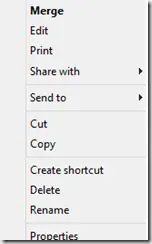
Fix a Missing 'Open With' Menu in Windows 7 or 8 (Historical)
Historical troubleshooting for a missing Open With context-menu entry in Windows 7/8, using file-association, system-repair, and policy checks without unknown registry patches.
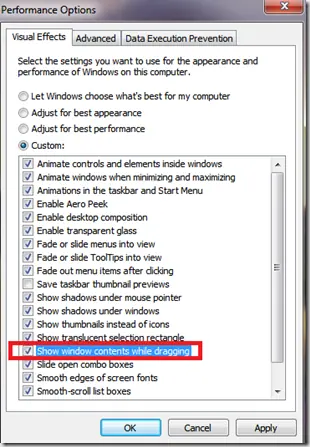
Fix Windows Turning Transparent While Dragging or Resizing (Windows XP–8, Historical)
Historical troubleshooting for Windows XP through Windows 8 when window contents disappear or appear transparent while dragging or resizing.