Fix a Missing 'Open With' Menu in Windows 7 or 8 (Historical)
Historical troubleshooting for a missing Open With context-menu entry in Windows 7/8, using file-association, system-repair, and policy checks without unknown registry patches.
Historical support note: Windows 7 and Windows 8 are no longer supported by Microsoft.
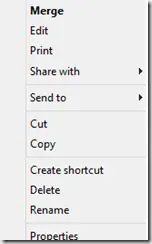
If Open with disappears from the right-click menu in Windows 7 or Windows 8, first determine whether only one file type is affected or the shell menu is missing broadly.
1. Check the file association
For a specific file type, use Windows’ Default Programs controls to choose which application should open it. If the expected application is missing, repair or reinstall that application before changing the registry.
2. Run System File Checker
Open an elevated Command Prompt and run:
sfc /scannowAllow the scan to finish and restart the PC if Windows reports repaired files.
3. Use System Restore if the menu recently disappeared
If the problem began after a software install, registry cleaner, shell extension, or security-tool change, a restore point from before the change can be safer than importing an unknown .reg file.
4. Check organizational restrictions
On a managed work PC, context-menu and file-association behavior can be controlled by policy or endpoint-security software. Ask the administrator before disabling security controls.
Why the old registry patch was removed
The original article linked to a downloadable registry patch and advised merging it as the first fix. The recovered package does not provide enough trustworthy provenance for that patch, and broad registry imports should not be the default troubleshooting method.
If registry repair is required, export the relevant key first and use a change documented for the exact Windows version and symptom.
Official references
- Microsoft System File Checker guidance: https://support.microsoft.com/en-us/windows/using-system-file-checker-in-windows
- Microsoft Windows lifecycle status: https://support.microsoft.com/en-us/windows/deployment/updates-lifecycle/what-does-it-mean-if-windows-isn-t-supported
Related posts
Browse all articles →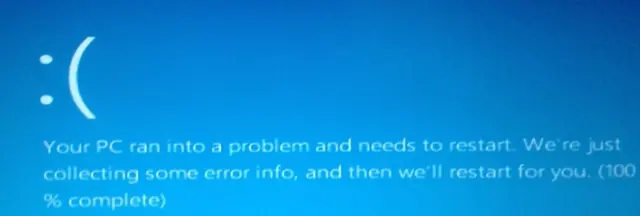
Fix DRIVER_POWER_STATE_FAILURE (0x9F) in Windows 8 or 7 (Historical)
Historical troubleshooting for DRIVER_POWER_STATE_FAILURE (0x9F) on Windows 8/7, focusing on the device, driver, firmware, or power transition responsible for the crash.
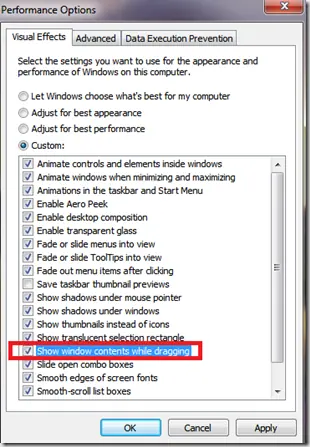
Fix Windows Turning Transparent While Dragging or Resizing (Windows XP–8, Historical)
Historical troubleshooting for Windows XP through Windows 8 when window contents disappear or appear transparent while dragging or resizing.
Fix 'Server Execution Failed' in Windows Media Player (XP–8, Historical)
Historical Windows Media Player troubleshooting for the 'Server execution failed' error on Windows XP through Windows 8, with unsafe privilege changes removed.