How to Open Command Prompt as Administrator in Windows 8, 7, and Vista (Historical)
Historical guide to opening an elevated Command Prompt in Windows 8, Windows 7, and Windows Vista.
Historical support note: This guide covers Windows 8, Windows 7, and Windows Vista. These releases are no longer supported by Microsoft.
Some repair commands require an elevated Command Prompt—a Command Prompt running with administrator privileges. The exact path differs by Windows version.
Windows 8
- From the desktop or Start screen, press Windows key + X.
- Select Command Prompt (Admin).
- Approve the User Account Control prompt.
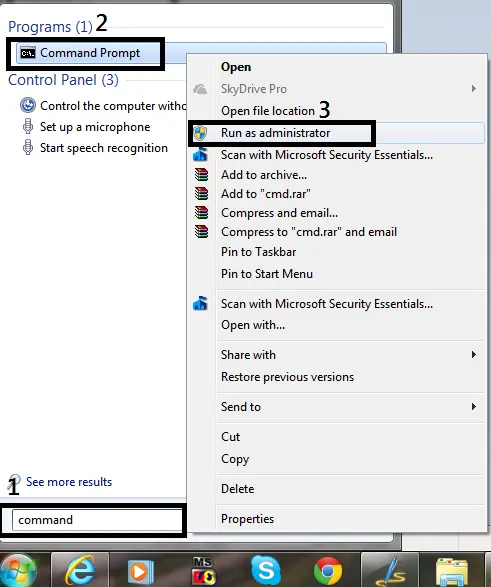
You can also open Start, type cmd, right-click Command Prompt, and choose Run as administrator.
Windows 7 and Windows Vista
- Open Start.
- Type
cmdorCommand Promptin the search box. - Right-click Command Prompt in the results.
- Select Run as administrator.
- Approve the User Account Control prompt or enter an administrator password when requested.
How to tell whether the prompt is elevated
The title bar normally begins with Administrator: when Command Prompt is elevated. Only run administrative commands you understand, because they can change system-wide settings.
Official reference
- Microsoft Windows lifecycle status: https://support.microsoft.com/en-us/windows/deployment/updates-lifecycle/what-does-it-mean-if-windows-isn-t-supported
Related posts
Browse all articles →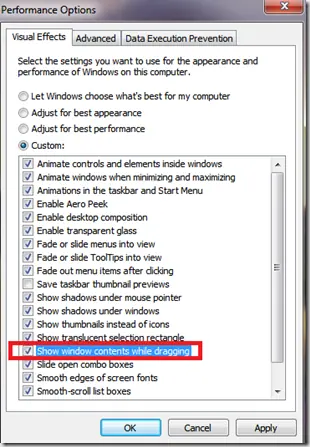
Fix Windows Turning Transparent While Dragging or Resizing (Windows XP–8, Historical)
Historical troubleshooting for Windows XP through Windows 8 when window contents disappear or appear transparent while dragging or resizing.
Keyboard and Mouse Stop Working After Windows Sign-In (XP–8, Historical)
Safer legacy troubleshooting for a keyboard or mouse that works before Windows loads but stops responding at or after sign-in.
Fix: Mouse or Touchpad Pointer Jumps While Typing in Windows 8, 7, Vista, or XP (Historical)
Historical troubleshooting for laptop touchpad cursor jumps, focusing on palm rejection, OEM drivers, sensitivity, charger interference, and hardware isolation.