Troubleshooting
How to Enable and Use Quick Machine Recovery in Windows 11
Check Quick Machine Recovery requirements, prepare a supported connection, and interpret no-fix, network-error and repeated-recovery outcomes before choosing another tool.
193 articles · Page 2
Check Quick Machine Recovery requirements, prepare a supported connection, and interpret no-fix, network-error and repeated-recovery outcomes before choosing another tool.
Fix Bluetooth pairing and connection problems in Windows 11 by checking pairing mode, battery, saved devices, Windows updates, and the Bluetooth driver.
Copilot Vision can look at a Windows app or screen you choose to share and give spoken, step-by-step guidance without controlling the PC for you.
Create a bootable Windows 11 Recovery Drive on USB so you can access recovery tools and reinstall Windows if the PC cannot start.
Task Manager showing 100% disk usage in Windows 11? Identify the process causing it before disabling services, changing registry values, or replacing the drive.
Use the built-in Windows Update recovery option to reinstall your current Windows 11 version while keeping apps, files, and settings.
If the Wi-Fi toggle disappears from Windows 11, check the hardware switch, adapter state, WLAN service, driver, and network reset in a safe order.
Fix a Windows 11 app without immediately reinstalling it. Learn the difference between Repair and Reset, when app data is removed, and what to do for traditional desktop programs.
Windows 11 CPU usage stuck near 100%? Use Task Manager, updates, process identification, malware scanning, and clean boot testing before changing services.
No speakers or headphones listed in Windows 11? Check the selected output, Device Manager, audio driver, enhancements, and Windows audio troubleshooting.
Stuck at the BitLocker recovery screen? Learn where to find the 48-digit recovery key and what to do if you cannot locate it.
Turn on Windows 11 Clipboard History, pin frequently used text, clear sensitive entries, and sync clipboard text across devices when appropriate.
Dynamic Refresh Rate can lower refresh rate during lighter work and increase it when supported workloads need smoother motion, helping balance battery life and responsiveness.
Windows 11 waking by itself, refusing to sleep, or draining battery overnight? Use powercfg and SleepStudy to identify the real cause before changing settings.
Windows 11 can store passkeys and use Windows Hello for passwordless sign-in. Learn how to create, use, manage, and remove them.
Printer offline, not found, stuck in queue, or refusing to print? Use the Windows 11 printer troubleshooter and work through connection, spooler, driver, and reinstall steps safely.
Generate a Windows 11 battery report with powercfg and compare design capacity, full charge capacity, usage history, and estimated battery life.
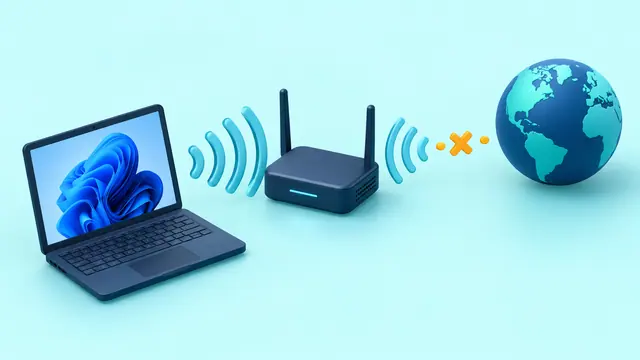
Windows 11 connected to Wi-Fi but says No Internet? Check the router, IP configuration, DNS, adapter driver, and network stack in the right order.
Extend laptop battery life in Windows 11 using Energy Saver, Energy Recommendations, power mode, display settings, and refresh-rate controls.
Use File History in Windows 11 to keep versioned copies of Documents, Pictures, Desktop, and other library files on an external drive or network location.