Windows guides
How to Use Focus Sessions in Windows 11 for Productivity
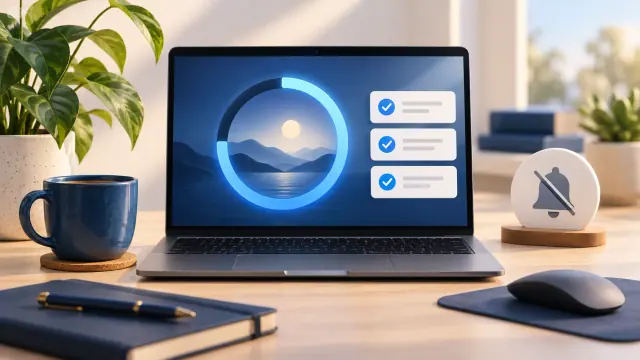
Use Focus in Windows 11 to reduce distractions, start timed focus sessions, and connect the Clock app with Spotify and Microsoft To Do.
12 articles
Use Focus in Windows 11 to reduce distractions, start timed focus sessions, and connect the Clock app with Spotify and Microsoft To Do.
Learn when Windows 11 can activate through a digital license without asking you to type a 25-character product key, and when a new license is still required.
Check Windows 11 compatibility with Microsoft PC Health Check and verify the key requirements, including TPM 2.0, UEFI, Secure Boot capability, RAM, storage, and CPU support.
Change your Windows desktop background to a picture, solid color, slideshow, or supported Windows Spotlight background, and adjust how images fit the screen.
Roll back a recently updated Windows driver through Device Manager, and learn what to do when the Roll Back Driver button is unavailable.
Use Microsoft PowerToys PowerRename or PowerShell to preview and apply advanced bulk file-renaming rules in Windows 10 and 11.
Troubleshoot Wi-Fi problems in Windows 10 and 11 with Microsoft's recommended sequence, from basic checks and reconnection to network commands, driver repair, and network reset.
Understand the Windows 11 TPM 2.0 requirement, what an unsupported installation means, and what to check before attempting any hardware-requirement workaround.
Allow a trusted app through Windows Firewall in Windows 10 or 11, understand private and public network profiles, and avoid opening unnecessary ports.
Install Windows Subsystem for Linux (WSL) on Windows 10 or 11, choose a Linux distribution, update WSL, and access Windows files from Linux.
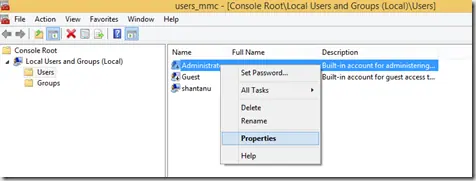
Enable the built-in Windows 8.1 Administrator account only when necessary, set a strong password, and disable it again after troubleshooting.
Restore the classic Quick Launch toolbar in Windows 7 using the built-in Quick Launch folder.