Windows guides
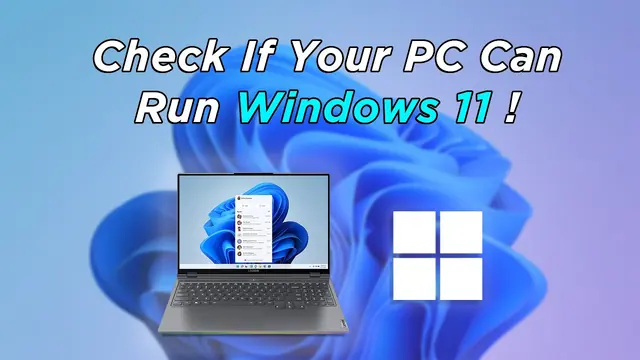
How to Check if Your PC Is Compatible with Windows 11
Check Windows 11 compatibility with Microsoft PC Health Check and verify the key requirements, including TPM 2.0, UEFI, Secure Boot capability, RAM, storage, and CPU support.
80 articles · Page 2
Check Windows 11 compatibility with Microsoft PC Health Check and verify the key requirements, including TPM 2.0, UEFI, Secure Boot capability, RAM, storage, and CPU support.
Change your Windows desktop background to a picture, solid color, slideshow, or supported Windows Spotlight background, and adjust how images fit the screen.
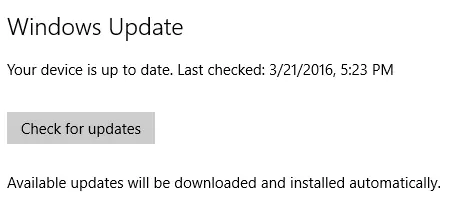
Use Active Hours, restart scheduling, and pause controls in Windows 10 to reduce interruptions from Windows Update. Includes current end-of-support guidance.
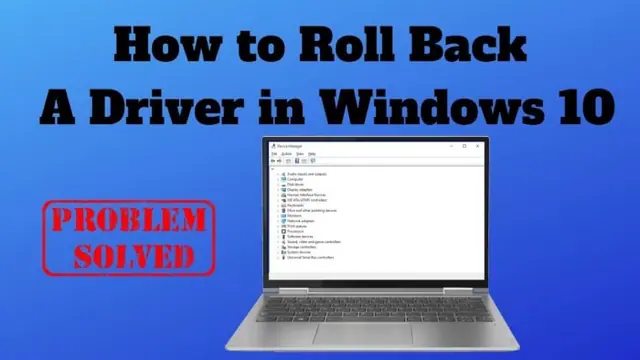
Roll back a recently updated Windows driver through Device Manager, and learn what to do when the Roll Back Driver button is unavailable.
Use Microsoft PowerToys PowerRename or PowerShell to preview and apply advanced bulk file-renaming rules in Windows 10 and 11.
Understand the Windows 11 TPM 2.0 requirement, what an unsupported installation means, and what to check before attempting any hardware-requirement workaround.
Allow a trusted app through Windows Firewall in Windows 10 or 11, understand private and public network profiles, and avoid opening unnecessary ports.
Control which supported Windows 10 apps can run in the background, reduce unnecessary activity, and understand which desktop apps are not affected by the Background apps privacy setting.
Install Windows Subsystem for Linux (WSL) on Windows 10 or 11, choose a Linux distribution, update WSL, and access Windows files from Linux.
Prepare a Windows PC for a Windows-and-Linux dual boot, protect your data, handle BitLocker correctly, and use the Linux installer’s supported alongside-Windows option when available.
Create a separate standard local account in Windows 11 for temporary users without enabling the built-in Guest account, which Microsoft recommends leaving disabled.
Quickly rename a group of files in Windows 10 or 11 with File Explorer, plus learn when Microsoft PowerRename is a better choice.
Use Windows 11 Settings or Task Manager to stop nonessential apps from launching when you sign in and identify high-impact startup items.
Check Windows activation status and activate Windows 10 or 11 with a digital license or valid product key. Includes current Windows 10 support context.
Find startup programs that do not appear in the normal Windows 11 Startup list by checking Startup folders and, for advanced troubleshooting, Microsoft Sysinternals Autoruns.
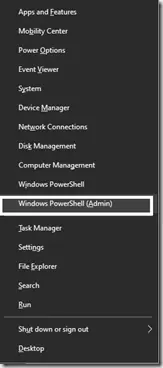
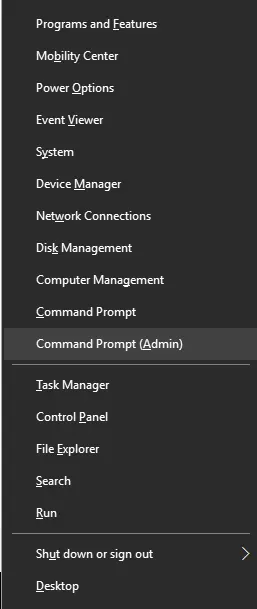
Historical Windows 10 instructions for switching the Win+X menu from Windows PowerShell to Command Prompt. This setting does not describe the current Windows 11 menu.
Step-by-step Windows 10 Safe Mode instructions using Windows Recovery Environment, including Safe Mode with Networking and recovery-media options.
Use the Configure Automatic Updates policy in supported Windows 10 editions to notify before downloading updates instead of silently downloading them.
Back up a Windows 10 registry key or export the registry before making advanced changes, and learn how to restore the saved .reg file.
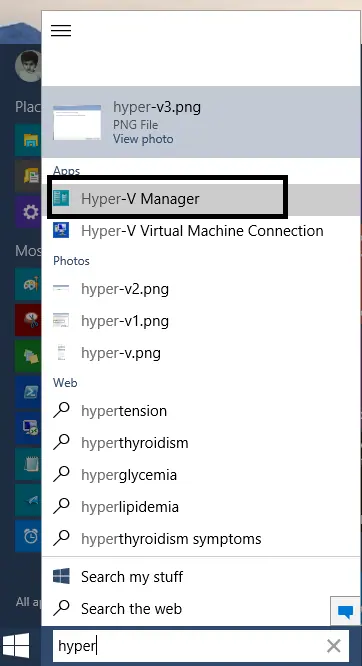
Create an external, internal, or private Hyper-V virtual switch in Windows 10 and attach virtual machines to the network you need.